-
Graded role play: Data export report fields
Read articleThis article provides a reference for the fields included in the Graded role play report. To access these reports, navigate to the Data export reports page > Learning activity tab.
Please note: Graded role play report is available for Role Play Enhanced customers.
To learn more about data export reports, review:
- How to generate, schedule, and download data export reports.
- Descriptions for all data export report fields.
- Answers to frequently asked questions regarding insights and reporting.
Report fields included in the Graded role play report
These report fields are included in the Graded role play report:
- User First Name
- User Last Name
- User Email
- External ID
- User Groups
- License Type
- User Is Deactivated
- Role Play ID
- Role Play Title
- Content Title
- Course Category
- Sub Category
- Attempt ID
- Date Started
- Date Ended
- Minutes Consumed
- Role Play Max Duration
- Duration Difference
- Role Play Goals
- Goals Completed*
- Goals Nearly Completed*
- Goals In Progress*
- Goals Not Completed*
- Attempt Number
- Role Play Score
- Role Play Score Improvement
- Attempt Status
- Role Play Learning Sequence
- Role Play Mode
- Organization Created Role Play
- Role Play Creation Date
* Please note: When a role play has multiple goals, they are listed as comma-separated values within each performance level column.
-
Users Reports: Data Export Report Fields
Read articleThis article provides a reference for the fields included in the User reports. To access these reports, navigate to the Data export reports page > Users tab.
To learn more about data export reports, review:
- How to generate and download data export reports
- Descriptions for all data export report fields
- Answers to frequently asked questions regarding data export reports
Table of contents
- Report fields included in the Users reports
- Report fields included in the User adoption funnel report
- Report fields included in the Users without activity and Users without enrollment reports
Report fields included in the users reports
These report fields are included in these users reports:
- All users
- All active users
- Deactivated users
- Pending invitations
Field All users All active users Deactivated users Pending invitations Deactivated date No No Yes No Email Yes Yes Yes Yes External ID Yes Yes Yes No Group Yes Yes Yes Yes Invited by No No No Yes Joined date No No Yes No License pool Yes Yes No Yes License type Yes Yes Yes Yes LMS User ID Yes Yes Yes No Name Yes Yes Yes No Role Yes Yes Yes Yes Sent at (UTC) No No No Yes Status Yes Yes Yes No Surname Yes Yes Yes No Report fields included in the User adoption funnel report
These report fields are included in the User adoption funnel report:
- Enrolled as % of users joined
- Group
- Joined as % of licenses
- Joined as % of invitations sent
- Not enrolled as % of users joined
- Not joined as % of invitations sent
- Not joined as % of licenses
- Not watched first lecture as % of enrolled
- Number of invitations sent
- Number of licenses available
- Number of users joined
- Number of users enrolled in a course
- Number of users not enrolled
- Number of users not joined
- Number of users that have not watched first lecture
- Number of users that watched their first lecture
- Overall adoption rate (watched as % of licenses)
- Watched first lecture as % of users enrolled
Report fields included in the Users without activity and Users without enrollment reports
These report fields are included in these Adoption reports:
- Users without activity
- Users without enrollment
Field Uses without activity Users without enrollment Date Joined (UTC) Yes Yes No. of Courses Enrolled Yes No No. of Assigned Courses Yes No User email Yes Yes User first name Yes Yes User groups Yes Yes User last name Yes Yes -
AI features: Data Export Report fields
Read articleThis article provides a reference for the fields included in the User role play activity report. To access these reports, navigate to the Data export reports page > Learning activity tab > AI features section.
To learn more about data export reports, review:
- How to generate, schedule, and download data export reports.
- Descriptions for all data export report fields.
- Answers to frequently asked questions regarding insights and reporting.
Report fields included in the User role play activity report
These report fields are included in the User role play activity report:
- Attempt ID
- Attempt Number
- Attempt Status
- Content Title
- Course Category
- Date Ended
- Date Started
- Duration Difference
- External ID
- Goal Completion Improvement
- Minutes Consumed
- Organization Created Role Play
- Role Play Creation Date
- Role Play Goal Completion Ratio
- Role Play Goals
- Role Play Goals Completed
- Role Play ID
- Role Play Learning Sequence
- Role Play Max Duration
- Role Play Mode
- Role Play Title
- Sub Category
- User Email
- User First Name
- User Groups
- User is Deactivated
- User Last Name
-
Content Reports: Data Export Report Fields
Read articleThis article provides a reference for the fields included in the Content reports. To access these reports, navigate to the Data export reports page > Content tab.
To learn more about data export reports, review:
- How to generate and download data export reports
- Descriptions for all data export report fields
- Answers to frequently asked questions regarding data export reports
Table of Contents
Report fields included in the Courses reports
These report fields are included in the Custom courses and Subscription courses reports:
- Created On
- Item Description
- Instructors
- Item ID
- Item Title
- Item URL
- Has Lab
- Has Practice Test
- Has Role Play
- Last Modified On
- Locale
Report fields included in the Learning paths reports
These report fields are included in the Public paths and Udemy paths* reports:
- created_on
- description
- editors
- id
- Last_modified_on
- title
- url
* Please note that the Udemy paths report is only available to Udemy Business Pro users.
This report field is also included in the Company paths report only:
- editors
-
Pro Activity: Data Export Report Fields
Read articleThis article provides a reference for the fields included in the Pro Activity reports. To access these reports, navigate to the Data export reports page > Learning activity tab.
Note: These reports are only available to Udemy Business Pro users. To learn more about data export reports, review:
- How to generate, schedule, and download data export reports
- Descriptions for all data export report fields
- An overview of the insights and reporting available in Udemy Business
- Answers to frequently asked questions regarding insights and reporting
Report fields included in the User assessment activity, User assessment proficiency, User skills proficiency, and User lab activity reports
These report fields are included on these Pro activity reports:
- User assessment activity
- User assessment proficiency
- User lab activity
- User skills proficiency
Field User assessment activity User assessment proficiency User lab activity User skills proficiency
Assessment ID Yes Yes No Yes Assessment Title Yes Yes No Yes Assigned By Yes No No No Assigned On Yes No No No Attempt Number No Yes No Yes Change since highest proficiency level No Yes No Yes Change since first proficiency level No Yes No Yes Date of Attempt No Yes No Yes Date of Best Attempt No Yes No Yes Date of First Attempt No Yes No Yes Date Last Active No No Yes No Due Date Yes No No No Engaged With Guidance Yes No No No External ID Yes Yes Yes Yes First Proficiency Level No Yes No Yes First Proficiency Level Number No Yes No Yes Highest Proficiency Level Yes Yes No Yes Highest Proficiency Level Number No Yes No Yes Lab assigned by No No Yes No Lab assigned due date No No Yes No Lab assigned on No No Yes No Lab completed No No Yes No Lab started No No Yes No Lab Title No No Yes No Last Activity Date Yes No No No Number Completed Yes No No No Number of Attempts Yes No No No Proficiency Level No Yes No Yes Proficiency Level Number No Yes No Yes Same Version No Yes No Yes Skill Topic No
No
No
Yes
Total time spent (in minutes) Yes No Yes No User Email Yes Yes Yes Yes User First Name Yes Yes Yes Yes User Groups Yes Yes Yes Yes User Is Deactivated Yes Yes Yes Yes User Last Name Yes Yes Yes Yes -
Badging: Data Export Report Fields
Read articleThis article provides a reference for the fields included in the User badge activity report. To access this report, navigate to the Data export reports page > Learning activity tab.
To learn more about data export reports, review:
- How to generate, schedule, and download data export reports
- Descriptions for all data export report fields
- Answers to frequently asked questions regarding insights and reporting.
Report fields included in the User badge activity report
These reports are included in the User badge activity report:
- Badge Name
- Date Uploaded
- Expires
- External ID
- Issuer Name
- Issued On
- User Email
- User First Name
- User Groups
- User Is Deactivated
- User Last Name
-
Courses: Data Export Report Fields
Read articleThis article provides a reference for the fields included in the Course reports. To access these reports, navigate to the Data export reports page > Learning activity tab.
To learn more about data export reports, review:
- How to generate, schedule, and download data export reports
- Descriptions for all data export report fields
- Answers to frequently asked questions regarding insights and reporting.
Table of Contents
- Report fields included in the Ratings, User Course Activity, and User Progress reports
- Report fields included in the Course Activity report
Report fields included in the Ratings, User Course Activity, and User Progress reports
The table below covers the fields included in these course reports:
- Ratings
- User course activity
- User progress
Field Ratings User Course Activity User Progress % Marked Completed No Yes No Certificate No
Yes
No
Course Category No Yes Yes Course Duration No Yes No Course ID Yes Yes Yes Course Locale No Yes Yes Course Title Yes Yes Yes Date Completed No Yes Yes Date Enrolled No Yes No Date Last Active No Yes Yes Date Started No Yes Yes External ID Yes Yes Yes Final Result (if Quiz) No No Yes First Date Completed No No Yes Lecture/Quiz ID No No Yes Lecture/Quiz Title No No Yes Lecture or Quiz No No Yes Marked Complete No No Yes Minutes Video Consumed No Yes No Rating Yes No No Review Yes No No Reviewed Datetime Yes No No User Email Yes Yes Yes User First Name Yes Yes Yes User Groups Yes Yes Yes User Is Deactivated Yes Yes Yes User Last Name Yes Yes Yes User Role Yes No Yes Report fields included in the Course Activity report
These fields are included in the Course activity report:
- Assigned
- Assigned By
- Average Consumption Per User in Minutes
- Average Rating
- Category
- Course Duration
- Course ID
- Course Locale
- Course Title
- No. of Ratings
- No. of Users Active
- No. of Users Assigned
- No. of Users Enrolled
- No. of Users Completed
- Total Consumption in Minutes
-
User Activity: Data Export Report Fields
Read articleThis article provides a reference for the fields included in the User activity reports. To access these reports, navigate to the Data export reports page > Learning activity tab.
To learn more about data export reports, review:
- How to generate, schedule, and download data export reports
- Descriptions for all data export report fields
- Answers to frequently asked questions regarding insights and reporting.
Table of Contents
- Report fields included in the real-time user activity reports
- Report fields included in the legacy user activity reports
Report fields included in the real-time user activity reports
The table below covers the fields included in these real-time user activity reports:
- User activity (active users)
- User activity (all users)
- User activity trend
- User skills
Field User Activity (active users) User activity (all users) User activity trend User skills Category No No No Yes Consumed Minutes No No Yes No Domain No No No Yes External ID Yes Yes Yes Yes Date Joined Yes Yes No No No. of Days Active Yes Yes No No Date of Last Activity Yes Yes No No Minutes Consumed No No No Yes Minutes Video Consumed Yes Yes No No Report Date No No Yes No Subcategory No No No Yes Topic No No No Yes User Email Yes Yes Yes Yes User First Name Yes Yes Yes Yes User Groups Yes Yes No Yes User Is Deactivated Yes Yes Yes Yes User Last Name Yes Yes Yes Yes User Role Yes Yes No No Report fields included in the legacy user activity reports
These fields are included in the both User activity (active users) (legacy) and the User activity (all users) (legacy) reports:
- External ID
- Date Joined
- Date of Last Activity
- No. of Assigned Courses
- No. of Courses Completed
- No. of Days Active
- No. of Lectures Completed
- Minutes Video Consumed
- No. of New Courses Enrolled
- No. of New Courses Started
- No. of Practice Activities Completed
- User Email
- User First Name
- User Groups
- User Is Deactivated
- User Last Name
- User Role
-
Data export report field descriptions
Read articleThis article provides descriptions for the fields included in the reports available on the Data export reports page. To learn more about reporting and insights, review:
- An overview of the insights and reporting available in Udemy Business.
- How to generate, schedule, and download data export reports.
- Answers to frequently asked questions regarding insights and reporting.
To see which report fields are included in specific reports, review the data export report field articles for:
- AI feature Reporting
- Badge reporting
- Content reports
- Course reports
- Pro activity reports
- User activity reports
- User reports
- Graded role play reports
Data export report field descriptions
Report Field Description % Marked Completed The most recent percentage of a course the user has completed.
Note: This information can change due to lectures being added or removed from a course.
Assessment ID The unique identifier given to an assessment. Assessment Title The title given to the assessment. Assigned If true: The course was assigned to the user.
If false: The user enrolled in the course themselves.
Note: Courses that were assigned before the 19th March 2015 won’t be recorded as assigned.
Assigned By The account name of the admin who assigned the course or assessment to the user.
This field will return empty if the user enrolled in the course or assessment themselves.
Assigned On The date the assessment was assigned to the user. Attempt ID The unique ID associated with a specific Role Play attempt. Attempt Number The overall number of times the user has attempted a specific assessment or Role Play. Attempt Status If Complete, the user completed the specified Role Play attempt.
If Incomplete, the user did not complete the specified Role Play attempt.
Note: If Incomplete, some columns on the User Role Play Activity report may return blank.
Average Consumption Per User in Minutes The average time (in minutes) spent on a course during the specified timeframe. Average Rating The average rating for a course, regardless of the specified timeframe. Badge Name The name of the certification badge. Category The primary category for a course or topic. Certificate Includes a link to a PDF of the user’s completion certificate, if available. Consumed Minutes The minutes of video a user has consumed for a topic during the specified timeframe.
Note: As the User skills activity report is topic-based, the overall minutes consumed may differ from the minutes consumed on the User activity report.
Content Title The title of the content associated with a specific Role Play (if any). Course Category The primary category of the course.
A report displays:
- Content subscription categories before custom categories.
- Categories in order of creation, from newest to oldest.
Course Duration The total duration (in minutes) of the video content of the course.
Note: As practice tests typically feature little to no video content, practice test courses may have 0 or a small number in the Course Duration column.
Course ID The unique identifier for the course. Course Locale The country of origin and language of the course. Course Title The title the instructor has assigned to the course. Created On The creation date of a:
- Custom course
- Subscription course
created_on The creation date of a:
- Public path
- Udemy path
Date Completed The most recent date/time (UTC) the user completed the course.
Note: This information can change due to lectures being added or removed from a course.
Date Ended Role plays and graded role plays are reported in PT (-07:00).
Note: As users can leave and return to a Role Play attempt, this field indicates the last time the user was active on the Role Play and does not mean the user has completed the Role Play attempt.
Date Enrolled The date/ time (UTC) the user enrolled in the course.
Note: If the user enrolls in the course and unenrolls shortly afterward (that is, before the next data processing occurs), this column may be blank.
Date Joined The first date (UTC) the user logged into Udemy Business.
Note:
- If the user is deactivated and later reactivated, this field will not update.
- This is a static metric and does not take the date range into account.
Date Joined (UTC) The first date (UTC) the user logged into Udemy Business Date Last Active The most recent date the user was active on the course.
- Note: If the user enrolls in the course and unenrolls shortly afterward (i.e. before the next data processing occurs), this field may be blank.
Date of Attempt The date the user attempted the assessment. Date of Best Attempt The date of the user’s best attempt at the assessment. Date of First Attempt The first date the user attempted the assessment. Date of Last Activity Regardless of the specified date range, this is generally the most recent date the user accessed a lecture and completed at least one course-related activity. Learn more about what defines an active user in Udemy Business.
Real-time reports: the date is localized to match the timezone of the admin.
Legacy reports: the date is PST/PDT.
User Activity Report (All Users):
- Real-time reports: the last date the user was active, regardless of the specified timeframe.
- Legacy reports: the date the user was last active, regardless of the timeframe.
User Activity Report (Active Users):
- Real-time reports: the last date the user was active during the specified timeframe. If not applicable, the value will be blank.
Legacy reports: the last date the user was active, regardless of the timeframe.
Date Started For the User course activity and User progress reports:
- The date/time (UTC) the user started a course.
- Note: If the user enrolls in the course and unenrolls shortly afterward (that is, before the next data processing occurs), this column may be blank.
For the User role play activity and graded role play report:
- The date/time PT (-07:00) the user started a specific Role Play attempt.
Date Uploaded The date the user uploaded a specific badge to their account. Deactivated date The date the user had their license removed. description The description given to a:
- Public path
- Udemy path
Domain The skills domain (Business, Personal, or Tech) associated with a category. Due Date The assessment’s due date. Duration Difference The difference between the max duration and the minutes consumed for a specific Role Play. Enrolled as % of users joined The percentage of users who have enrolled in a course, in relation to the number of users who have accepted their invitation to join Udemy Business and have logged in at least once. Email The user's email address. editors The users assigned as editors for a Public Path. Engaged With Guidance If TRUE: The user interacted with the sections or lectures recommended for the assessment.
If FALSE: The user did not interact with the sections or lectures recommended for the assessment.
Estimated % Completed The estimated percentage of a lecture that a user has consumed, taking into account rewatches for video lectures. External ID An optional, custom, unique identifier, which you can apply to user accounts in Udemy Business to help ensure consistent reporting when reporting via APIs.
This is more common in organizations where users may have two or more email addresses.Expires The date a badge expires, if applicable. Final Result (if Quiz) The final score received by the user on a quiz. This field returns empty for lectures
Note:
- If a user takes a quiz twice and receives 80% on their first try, and then receives 90% on their second and final attempt, then the User progress report will contain two rows. Each row will include the score for that respective attempt.
- There's no limit to how many times a user can retake a quiz.
First Date Completed The first date/time (UTC) the user completed the course. The column is present in both the CSV and the Reporting API.
Note:
- If the instructor adds new lectures or content, the date and time stamp under First Date Completed will remain the same.
- If the learner completes the extra content, it will be recorded under the Date Completed field.
First Proficiency Level The level of proficiency the user achieved the first time they attempted a specific assessment. First Proficiency Level Number The proficiency level number (1-4) the user achieved for their first attempt at an assessment. Goal Completion Improvement The difference between the user’s first attempt and the specified attempt, for a Role Play goal. Goals In Progress The total number of goals in progress for a specific Role Play, based on the evaluation criteria. Goals Nearly Completed The total number of goals nearly completed for a specific Role Play, based on the evaluation criteria. Goals Not Completed The total number of goals not completed for a specific Role Play, based on the evaluation criteria. Goals Completed The total number of goals a user has completed for a specific Role Play, based on the evaluation criteria. Group The group of users that the report was run for. Example: All users. Has Lab TRUE if the course contains a lab. Has Practice Test TRUE if the course contains a practice test. Has Roleplay TRUE if the course contains a Role Play. Highest Proficiency Level The highest proficiency level (Beginning, Developing, Established, or Advanced) the user achieved across all attempts for a single assessment. Highest proficiency Level Number The highest proficiency level (1-4) the user achieved across all attempts for a single assessment. id The unique identifier for a:
- Public path
- Udemy path
Instructors The instructors for a Custom course or Subscription course. Invited by The user who sent the pending invitation. Issued On The date the badge was issued to the user. Issuer Name The organization that awarded the user with the badge. Item description The description given to a:
- Custom course
- Subscription course
Item Title The title given to a:
- Custom course
- Subscription course
Item URL The web address of a:
- Custom course
- Subscription course
Joined as % of invitations sent The percentage of users who have accepted their invitation to join Udemy Business and logged in at least once, in relation to the overall number of invitations sent. Joined as % of licenses The percentage of users who have accepted their invitation to join Udemy Business and logged in at least once, in relation to the overall number of licenses your organization holds. Joined date The first date (UTC) the user logged into Udemy Business. Lab assigned by The user who assigned the lab to the learner. Lab assigned due date The due date set for the lab. Lab assigned on The date the lab was assigned to the user. Lab completed If TRUE: The user has completed the lab.
If FALSE: The user has not completed the lab.
Lab started Users are included in the Lab Activity Report when this field is TRUE. Lab Title The title assigned to the lab. Last Activity Date The last date the user was active on the assessment. last_modified_on The last date one of the following was modified:
- Public path
- Udemy path
Last Modified On The last date one of the following was modified:
- Custom course
- Subscription course
Lecture/Quiz ID The unique identifier associated with the lecture or quiz. Lecture/Quiz Title The title of the lecture or quiz. Lecture or Quiz Indicates whether the content was a video lecture, other lecture, or quiz. License pool The license pool the user is assigned to. License type The license assigned to the user:
- AI Readiness
- AI Readiness (ES)
- AI Readiness (PT)
- AI Readiness (JP)
- AI Growth
- Enterprise
Further information on the available AI Readiness language collections:
- AI Readiness - English
- AI Readiness (ES) - Spanish
- AI Readiness (PT) - Portuguese
- AI Readiness JP (Japanese)
LMS User ID An external ID pulled from the LMS. Locale The country of origin and language of a Custom course or Subscription course. Marked Complete Returns True if there’s a value in the Date Completed column.
Returns False if there’s no value in the Date Completed column.
Minutes Consumed For the User Role Play activity report:
- Provides the minutes the user spent consuming the Role Play content.
- Note: A user may start an attempt, leave the attempt, and then resume the attempt later. This can result in the difference between Date Started and Date Ended being greater than the time specified in Minutes Consumed.
For the User skills activity report:
- Provides the minutes of video a user has consumed during the specified timeframe.
- Note: As the User skills activity report is topic-based, the overall minutes consumed may differ from the minutes consumed on the User activity report.
Minutes Video Consumed The total minutes during the specified timeframe the user spent watching video, including rewatches and progress made in practice tests. This number does not take into account:
- Any parts of a lecture that are skipped.
- Time spent on activities or lectures that do not include videos.
- Video playback speed.
Note:
- Lectures that do not include videos still count towards course completion. For example, a User Activity Report could indicate that a user has completed lectures, even if there is no time recorded in the Minutes Video Consumed column.
- For legacy reports, only time spent watching videos is counted towards the total.
Examples:
Rewatches: If a user watched 1 hour of the course on Monday, and then on Tuesday, they watched the same 1 hour again. In this case, the user spent 2 hours learning on Udemy Business that week.
Playback Speed: If the user watched 2 hours of content in 1 hour, by viewing the content at 2x the speed, the report would show that they spent 2 hours viewing the course.
Skipped Parts of a Lecture: If a user starts watching a 10 minute lecture and after 1 minute, they skip to the end of the lecture, the report only displays the actual time they spent on the lecture, which in this case is about 1 minute. The lecture, however, will be marked as complete.
Name The user’s first name.
Note: Some organizations with SSO/SCIM may populate these fields on behalf of the user with the first name recorded in their organization's systems of record.
No. of Assigned Courses The number of courses assigned to the user during the specific timeframe. No. of Courses Completed The number of courses completed by the user during the specific timeframe. No. of Courses Enrolled The number of courses the user has enrolled in. No. of Days Active The number of days within the specified timeframe that the user carried out at least 1 of the following activities.
For Real-Time User activity reports:
- Progressed through a video lecture
- Attempted a practice test
- Completed a practice test
For Legacy User activity reports:
- Enrollment of a course (either self-enrolled or assigned)
- Progress through a video lecture (in chunks of 15 seconds)
- Completion of a lecture
- Attempt of a practice activity
- Completion of a practice activity
- Completion of a course
- Reviewing/rating a course
No. of Lectures Completed The number of lectures completed by the user during the specified timeframe. No. of New Courses Enrolled The number of new courses the user enrolled in during a specified timeframe. No. of New Courses Started The number of new courses the user started during a specified timeframe. No. of Practice Activities Completed The number of practice activities (quizzes, coding exercises, and practice tests) successfully completed by the user during the specified timeframe.
Note: If the practice activity was started but not completed, or was completed unsuccessfully, it won’t be included in this count.
No. of Ratings The number of ratings the course received, regardless of the specified timeframe. No. of Users Active The total number of users who were active on the course during the specified timeframe. No. of Users Assigned The total number of users who were assigned the course during the specified timeframe. No. of Users Completed The total number of users who completed the course during the specified timeframe. No. of Users Enrolled The total number of users who enrolled in the course during the specified timeframe. Not enrolled as % of users joined The percentage of users who have not enrolled in a course, in relation to the overall number of users who have accepted their invitation to join Udemy Business and logged in at least once. Not joined as % of invitations sent The percentage of users who have not accepted their invitation to join Udemy Business, in relation to the overall number of invitations sent. Not joined as % of licenses The percentage of users who have not accepted their invitation to join Udemy Business, in relation to the overall number of licenses your organization holds. Not watched first lecture as % of enrolled The percentage of users who have not yet watched their first lecture, in relation to the overall number of users who have enrolled in a course. Number Completed The number of times the user has completed the assessment. Number of Attempts The number of times the user has attempted the assessment. Number of invitations sent The number of invitations your organization has sent. Number of licenses available The number of licenses that have not been assigned to a user. Number of users enrolled in a course The number of users who have enrolled in at least one course. Number of users joined The number of users who have accepted their invitation to join Udemy Business and logged in at least once. Number of users not enrolled The number of users who have not yet enrolled in at least one course. Number of users not joined The number of users who have not accepted their invitation to join Udemy Business. Number of users that have not watched first lecture The number of users who haven’t watched their first lecture. Number of users that watched their first lecture The number of users who have watched their first lecture. Organization Created Role Play If TRUE, the Role Play was created by someone in the organization.
If FALSE, the Role Play was not created by someone in the organization.Overall adoption rate (watched as % of licenses) The percentage of users who have watched their first lecture in relation to the overall number of licenses your organization holds. Parent Content Title The title of the course associated with a specific Role Play (if any). Proficiency The level of proficiency the user reached for a specific attempt at an assessment. Proficiency Level Change Since Highest How the specified assessment attempt compares to the user’s best attempt. Proficiency Level Number The proficiency level number (1-4) the user achieved for a specific attempt at an assessment. Rating The rating the user gave to the course. Review The review the user gave for the course. Reviewed Datetime The date/time a user rated or created a review for a specific course. Report Date The period of activity the report measures. Role The role and corresponding permission level of the user:
- User
- Admin
- Group admin
- Owner
Role Play Creation Date The date the role play was created. Role Play Goals Completed The total number of goals a user has completed for a specific Role Play. Role Play Goal Completion Ratio The number of goals a user has completed for a specific Role Play compared to the number of goals the Role Play contains. Role Play Goals The number of Role Play goals in a specific Role Play. Role Play ID The unique ID associated with a specific Role Play. Role Play Learning Sequence Indicates the position of a specified Role Play attempt in the overall sequence of all Role Plays the user has attempted.
For example, a value of 3 in this column indicates that the specified attempt was the user’s 3rd attempt at a Role Play, out of all the Role Plays they have attempted.Role Play Max Duration The max duration set for a specific Role Play. Role Play Mode Shows whether the role play is taken in video or audio mode. Role Play Title The title of a specific Role Play. Role Play Score A percentage grade representing the learner's overall performance across all goals and evaluation criteria in the scenario. The AI calculates this score based on achieved performance levels. Role Play Score Improvement The difference between the first score and the latest score. Same Version The version of the assessment the user attempted.
- If TRUE, the user attempted the same version as their previous attempt.
- If FALSE, the user attempted a different version to their previous attempt.
Sent at (UTC) The date/time (UTC) the pending invitation was sent to the user. Skill Topic The skill topic associated with a specific assessment. Start Proficiency Level Change How the specified assessment attempt compares to the user’s first attempt. Status The status of the user’s license during the specified timeframe:
- Active: The user holds an active license.
- Deactivated: The user does not hold an active license.
Subcategory A topic’s secondary category. Surname The user’s last name.
Note: Some organizations with SSO/SCIM may populate these fields on behalf of the user with the Last Name recorded in their organization's systems of record.
title The title given to a:
- Public path
- Udemy path
Topic The topic associated with the user’s learning. Total Consumption in Minutes The total number of minutes that users spent on the course during the specified timeframe. Total time spent (in minutes) The total number of minutes the user spent on a lab or assessment. url The web address of a:
- Public path
- Udemy path
User Email The user’s email address. User First Name The user’s first name.
Note: Some organizations with SSO/SCIM may populate these fields on behalf of the user with the first name recorded in their organization's systems of record.
User Groups A comma-separated list of all groups that a user has been assigned to within a Udemy Business account.
Admins and group admins are able to easily see group membership details when exporting user reports, including all users within a group.
User Is Deactivated The status of the user’s license during the specified timeframe.
- If Yes: The user holds an active license.
- If No: The user does not hold an active license.
User Last Name The user’s last name.
Note: Some organizations with SSO/SCIM may populate these fields on behalf of the user with the Last Name recorded in their organization's systems of record.
User Role The role and corresponding permission level of the user.
Admin:
- Admins have access to:
- The Manage and user management features.
- Insights and reporting for the group(s) in their organization’s account.
- Admins can also perform functions such as creating learning path folders, assigning learning to students, and approving custom courses.
Group admin:
- Group admins have access to:
- The Manage menu and user management features.
- Insights and reporting for only the group(s) they were assigned to as group admin.
- Learn more about what group admins can do.
Owner:
- This user is listed as the primary admin of the Udemy Business site.
- Udemy Support will reach out to this individual if any requested actions in a ticket require Admin approval.
- Owners have the same access privileges as admins and their account can only be deactivated by Udemy Business Support.
Student:
- Students do not have access to the Manage menu.
- Students can search the content library, consume content, curate learning paths, and upload their own courses for the organization.
Watched first lecture as % of users enrolled The percentage of users who have watched their first lecture, in relation to the number of users who have enrolled in at least one course. -
Practice Tests: How Activity and Time are Tracked
Read articleThis article includes answers to frequently asked questions about how activity and time are tracked when learners progress through practice tests.
- Learn more about practice tests and how they work.
Table of contents
- What practice test activities have time-tracked?
- How is time tracked and calculated when users progress through practice tests?
- Examples of how time is tracked during practice tests
- How time tracking works depending on the practice test status
- What reports will include practice test time spent?
What practice test activities have time-tracked?
Time is only tracked for practice test lectures, and is not tracked for quizzes or coding exercises.
How is time tracked and calculated when users progress through practice tests?
Time spent tracking starts when users start the practice test by clicking the Begin test button.
- Time continues to be tracked between each relevant practice test action. Actions include:
- Time spent before submitting a question.
- Time spent before clicking the pause button.
- Time spent before the practice test is paused.
- Time spent before clicking the finish test button
- etc.
- Time is not tracked when:
- When a user leaves the page or refreshes the page.
- Users click the Finish test button.
- Users click the pause button.
- Users finish the practice test.
- The practice test will automatically pause if the user is idle for 5 minutes.
Examples of how time is tracked during practice tests
Scenario Time tracked by the system Reason
A user is taking the practice test and takes 3 minutes to submit an answer for question 1.3 minutes (or 180 seconds)
After starting the practice test, the user took 3 minutes to submit an answer.
A user takes 3 minutes to submit an answer for question 1, and then takes 5 minutes to submit an answer for question 2.8 minutes (or 480 seconds)
After starting the practice test:
- The user spent 3 minutes to submit an answer for question 1.
- The user spent 5 minutes to submit an answer for question 2.
A user spends 1 minute on question 1 before pressing the pause button.1 minute (or 60 seconds)
After starting the practice test:
- the user was on the page for 1 minute before pressing the pause button.
A user spends 1 minute on question 1 before pressing the pause button. They resume the practice test and spend 1 more minute on question 1, before submitting an answer.2 minutes (or 120 seconds)
After starting the practice test:
- The user is on the page for 1 minute before pressing the pause button.
- No time is tracked while the practice test is paused.
- The user spent 1 minute before submitting an answer.
While reviewing question 1 of a practice test, the user switches to a different tab and does not return to the practice test.5 minutes (or 300 seconds)
After starting the practice test:
- The user is idle for 5 minutes
- The practice test is automatically paused for the user, since they have not taken an action within the past 5 minutes
How time tracking works depending on the practice test status
Practice test status Screenshot After the test begins: Time spent tracking starts when a user starts the practice test by clicking the Begin test button. Between actions: Udemy continues to track time between each relevant practice test action (e.g. submit answer, click pause). The test is paused, idle or left. Udemy stops tracking time when:
- A user leaves the page or refreshes the page.
- A user clicks the pause button.
- The practice test is automatically paused when the user is idle for 5 minutes.
The practice test is completed.
Udemy stops tracking time when:
- A user clicks the Finish test button
- A user finishes the practice test
What reports will include practice test time spent?
These data export reports include the time spent on practice tests:
- User activity report (active users)
- User activity report (all users)
Learn more about the report fields in data export reports.
-
What is a Beta Assessment?
Read articleThis article explains what a Beta tag for assessments indicates, how they work and what may come next after a beta ends.
- Learn more about assessments and how to access them.
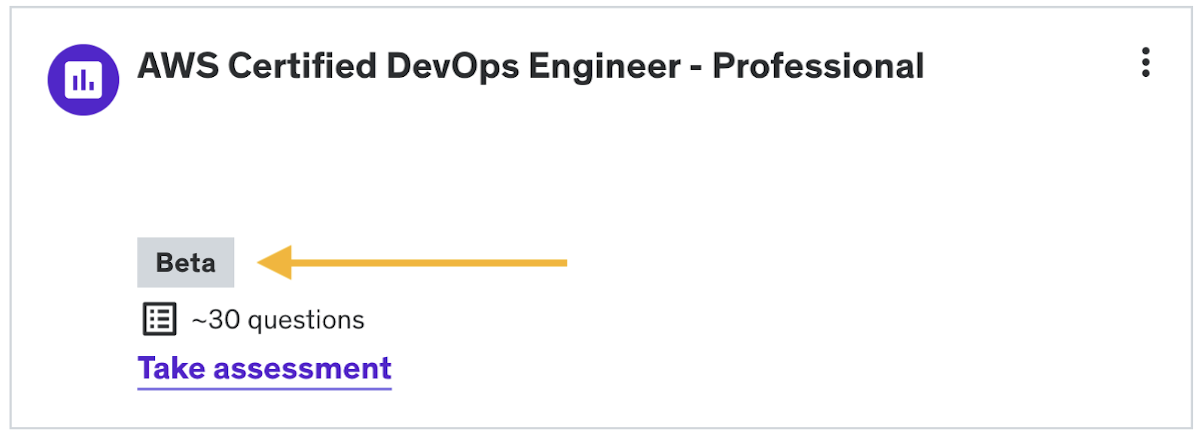
What is a “Beta” tag and what do they look like?
A ‘Beta’ tag on an assessment indicates that the assessment is new and that we are gathering data to make improvements. You can see an example of a Beta tag below.
What kind of changes can be expected during and after Beta?
Beta status is not indicative of the assessment being experimental or in a trial period, it's just an indication that we're still collecting the user data that lets us fully model the balancing and cohort mechanics for score benchmarking. Beta assessments are still a great way to get meaningful directional feedback on skill proficiency and to get guidance to specific learning areas based on questions missed.
During beta we may deactivate or change individual questions that present a poor user experience or give us concerns about our ability to validly assess a skill with them. (In fact, we continue to monitor quality and make improvements even after Beta.)
How are questions selected before entering Beta?
Questions are carefully developed using a model-based approach which is informed by learning content from our subject matter experts at Udemy. After development, questions go through another round of automated evaluation to identify any outstanding quality issues prior to exposing them to users. Since Beta assessments are brand new, our team continuously monitors the questions via performance data and/or in-product feedback to revise or remove them when necessary. But in most cases, there won't be extensive changes to a significant percentage of questions in the transition from Beta.
How is the Beta period used?
The kinds of improvements we make during the Beta period are primarily focused on improving score accuracy for each particular assessment.
When we first release an assessment, we make some basic assumptions for scoring about how the assessment questions will function and how users will perform in relation to the content. Over time with sufficient data we can go back and tailor those original assumptions for a more accurate scoring model.
Since our major refinements to scoring are made during Beta, once an assessment is calibrated the ongoing updates and improvements we make over time will be more subtle and happen on a slower cadence. This makes our calibrated assessments that much better of a tool with which skill growth can be looked at via retakes.
What score modeling assumptions are made during Beta?
We make an initial modeling assumption with Beta assessments that all questions are roughly the same difficulty, and that average user knowledge of the assessed skill is normally distributed and well aligned with question difficulty. Over time, and with sufficient data, we revise those assumptions and remove the ‘Beta’ flag to indicate the initial calibration process is complete and that learner scores now reflect the unique difficulty of the specific items they answered. The percentile scores reported to learners are also updated to reflect the most recent performance data from assessment responses on the platform.
How are scores impacted by Beta?
If a learner completed an assessment during beta and it is later calibrated, their original results won't change. The results page remains a snapshot of their beta scoring.
If the user retakes the assessment post Beta, they may see some shift in score, percentile, and/or proficiency level based on changes in item calibration and cohort (aside from their own possible shifts in performance). Since all of that will be conflated together it's important not to make any kind of definitive progress/growth conclusions based on a Beta vs Calibrated (non-Beta) comparison.
Therefore, in a scenario where comparisons between multiple assessments takes are being used to draw skill growth conclusions, note that the most accurate readings will be comparing multiple takes of a fully calibrated (non-Beta) assessment.
-
Admin Overview: Team Plan
Read articleAs an admin or group admin, when you log into Udemy Business, you will see an insights summary dashboard called the Admin Overview page. This article outlines how you can access the Admin Overview for Team Plan accounts and what insights it includes.
Please note: an expanded version of this page is available with the Enterprise Plan.
- Enterprise Plan account: learn how to access your admin overview.
What is the Team Plan Admin Overview?
The Team Plan Admin Overview provides admins with a digestible summary of insights at a glance, with personalized recommendations.
Team Plan Admins will be able to review these insights for all of the learners in their Udemy Business account.
This centralized, personalized landing page provides admins with:
- An intuitive dashboard that tells the story behind your learner data and recommended actions to take.
- Data that can be leveraged to make quick and easy decisions that increase learner engagement.
How to access your Admin Overview
1. In Udemy Business, an admin's log-in home page is the Admin Overview. Once you've navigated away from the Admin Overview, it can be accessed at any time via your account’s homepage.
Please note: If you want to navigate back to the learner homepage with courses and content, click on the logo on the top left hand corner of your logged-in account.
2. Here’s what you can do in your Team Plan Admin Overview -
- Manage Users - Set your account up for success by managing users. See what percentage of licenses you’ve used already and view pending invitations, as well as inviting new users to sign up.
- Manage your subscription - Upgrade your plan or add new licenses
- Drive structured learning - Discover and recommend content with Course Categories and check learner activity
- Discover Insights View your most active learners in the Team Plan user activity dashboard, recent ratings and quickly access the user adoption funnel
- Upgrade to Udemy Business Enterprise Plan - Learn more about the features you’ll get when you upgrade to Enterprise Plan
-
Admin Overview: Enterprise Plan
Read articleAs an admin or group admin, when you log into Udemy Business, you will see an insights summary dashboard called the Admin Overview page. This article outlines how you can access the Admin Overview for Enterprise Plan accounts and what insights it includes.
- Team Plan account: Learn how to access your admin overview.
What is the Admin Overview?
The Admin Overview provides admins and group admins with a digestible summary of insights at a glance, with personalized recommendations.
Admins will be able to review these insights for all of the learners in their Udemy Business account, while group admins will have access to this information for just their specific groups.
This centralized, personalized landing page provides admins and group admins with:
- An intuitive dashboard that tells the story behind your learner data and recommended actions to take.
- Data that can be leveraged to make quick and easy decisions that increases learner engagement.
How to access your Admin Overview
- After logging into Udemy Business, admins or group admins can access the Admin Overview on their account's landing page.
- Please note: If you want to navigate back to the learner homepage with courses and content, click on the logo on the top left hand corner of your logged in account.
- Here’s what you can do in your Admin Overview -
- a) Manage Users - Set your account up for success by managing users. See what percentage of licenses you’ve used already and view pending invitations, as well as inviting new users to sign up.
- b) Review your learners’ feedback - See what feedback your learners are sharing about their experience on Udemy Business.
- c) Active users - See what percentage of your users are active and download best practices to engage your learners.
- d) Check out skills - See what skills are popular in your industry and in your organization.
- e) Insights quick links - Quick access to see your user adoption funnel and course insights.
- f) Learning paths - Quick links to explore and create learning paths, track engagement and see the most enrolled learning path in your organization
- g) Share content - Share with your team by exploring, sharing and viewing assigned courses and content.
- h) Udemy Business Pro - Learn more about how you can access immersive learning for your tech teams.
-
Viewing Learner’s Badge Data Within Your Udemy Business Account
Read articleThis article explains how admins and group admins can view their learners’ certification badge achievements within the Udemy Business product.
Please note: Udemy Business supports the Open Badge standard only.
- Open Badges are web-enabled versions of a credential, certification or learning outcome that provide employers with verifiable evidence of skills achieved through learning.
- Learn more about Open Badges (English only).
- For customers in Austria, Germany or Switzerland learner badge data will be hidden from admins and group admins.
About learner badge data
Udemy Business enables admins and group admins to view a learner’s imported badges and the learning content they used to prepare and pass their certification exam.
How to access a learner’s badge information
1. After logging in to your Udemy Business account, scroll to Manage and click Manage Users.
2. Select a learner, and then click on the Badges tab. Here, you can view which certification badges they have imported, along with key learning data.
3. Click on a Certificate Name to view more information about the badge and the learning content that was completed on Udemy to obtain it.
-
Streaks: Frequently Asked Questions
Read articleThis article includes answers to frequently asked questions we receive regarding Streaks.
Please note: this feature is only available with the Enterprise Plan.
Table of contents
- What is a Streak? How does it work?
- Where are Streaks being surfaced?
- Can’t see the Streak feature in the Udemy Business native app?
- Why did you launch Streaks?
- How often does lecture watching data update?
- Are there associated emails that will go to learners?
- Can admins switch it off?
- Can admins set a time limit for the Streak?
- What will learners see on desktop and mobile?
What is a Streak? How does it work?
A Streak is a feature that encourages learners to learn each week to maintain their Streak. Learners can maintain their streak by logging in and watching 30 minutes of course videos each week. A Visit ring appears closed once a learner logs in. A Watch Ring updates as they progress through watching video minutes each week. Once they have watched 30 minutes of video, the ring closes and they have completed their Watch activity for the week!
A learner must close both their Visit and Watch rings each week to maintain their Streak.
Where are Streaks being surfaced?
Streaks are surfaced within the Udemy Business web and native app experience.
Can’t see the Streak feature in the Udemy Business native app?
Make sure you have updated the app to the latest version from the Play Store or App Store.
Why did you launch Streaks?
At Udemy, we are always looking for ways to help individuals and organizations learn new skills that will help them reach desired outcomes faster. Streaks have proven to be an effective motivator to keep users engaged.
How often does lecture watching data update?
Currently, lecture watching data updates 3 times per day, so learners will not see their ring closing simultaneously as they learn. This is something we are working toward for future iterations.
Are there associated emails that will go to learners?
Not yet. We are currently experimenting with Streak emails that will encourage learners to log into Udemy to complete their 30 minute ring.
Can admins switch it off?
We are encouraging all customers to keep the Streak feature turned on at this time, as we have seen very positive learner engagement results across global organizations through the experiments we’ve run.
If you would still like to disable the Streak feature, your Customer Success Manager can do that for you.
Feedback is always welcome! So if you have any that you’d like to provide to help us improve the feature, please contact your Customer Success Manager.
Can admins set a time limit for the Streak?
For now, all Watch rings will have a time limit of 30 minutes. The 30-minute time limit has been chosen carefully to accommodate active and passive learners and encourage each of them to learn for an attainable yet significant amount of time in a given week.
What will learners see on desktop and mobile?
Desktop Mobile -
User Categories And Reporting: Activated vs. Deactivated
Read articleThis article discusses the differences between the user categories in Udemy Business accounts, and how they impact admin reporting.
Where admins can view user totals in their Udemy Business account
Admins can see how many users are enrolled in their Udemy Business account, and what category they are assigned to via the User management page and the applicable filters.
User categories and activation
All users: this includes every user who has joined your account at some juncture and includes both activated and deactivated users.
Licensed users (or License allocated): these are activated users who currently hold a license and have joined their Udemy Business account. Users are activated if they have logged in or authenticated via Single Sign On (SSO) at least once to activate that license.
Users who have not activated their license are not included in any insights and reporting.
- Learn more about what defines an active user so their learning is captured in Insights and reporting.
No license: Users provisioned through SCIM by your SSO provider will be created in your Udemy Business account, but will not take up a license, and will not be activated, until they access their account by authenticating via your SSO provider. When users are provisioned through SCIM, but have not accessed their Udemy Business account via SSO, they will display in the All users page with a No license status.
Pending invitations: This includes people who have been invited to your Udemy Business account, but they have yet to claim their license and become an activated user.
- Learn more about inviting users to your Udemy Business account and how to resend pending invitations.
Deactivated users: These are users who have had their licenses removed and can no longer access the Udemy Business portal. Deactivated users retain all data relating to their learning, however, and can be reactivated at any time by the admin.
Deactivated users who have their Personally Identifiable Information (PII) removed
Deactivated users can have their Personally Identifiable Information (PII) permanently removed for General Data Protection Regulation (GDPR) compliance, or a similar purpose.
Once a user’s PII data has been deleted they become anonymized users and all references to them in Udemy Business are labeled with “Anonymized User”. Please note that deleting a user’s PII is irreversible.
-
How to Access And Review The Group Membership Log
Read articleThe Group Membership Log includes extensive information about what actions a group has completed and what employees have been added or removed.
Admins can access the Group Membership log of every group. Group admins, however, can only access the Group Membership Log for the groups that they are group admins for.
For more information on how to create user groups, please click here.
How to access the group membership log
The Group Membership Log can be accessed by doing the following:
- From the Manage dropdown menu at the top, select Manage Users
- On the left hand side of the page, click on Manage Groups
- Click the ellipses to the right of the group name. Or, after selecting a specific group, click on the ellipses beside the Invite new users button.
- Select Group Membership Log
What information does the Group Membership Log include?
The log reports on:
- Date: Date action was completed
- Name: Name of employee that was added or removed
- Email: Email of employee that was added or removed
- Action: Action performed
- Group: Group that log is reporting on
- By: The method in which the user was added/removed from the group - i.e. SSO data, CSV upload, name of admin/group admin, etc.
Note: The Group Membership log includes data from 23 March 2018 onwards.
-
Insights and Reporting for Courses no Longer in The Udemy Business Collection
Read articleThis article discusses how updates to the Udemy Business course collection may impact Insights and Reporting for admins and group admins.
If a course is no longer available in the Udemy Business collection, is prior learning data deleted from admin dashboards and reports?
All learning data is retained, even if a course is no longer available in the Udemy Business collection. Admins are able to view more detailed information from the Course Insights dashboard, or on individual learner’s profile pages.
The minutes consumed and other activity on these courses will also still be recorded via admin Insights and Reporting.
-
Udemy Business Integrations: xAPI
Read articlexAPI (Experience API) is an e-learning data and specification interface standard to collect and share data about a learner’s experience, within the context of a wide range of learning activities including online and offline.
Please note: The xAPI integration is available with the Enterprise Plan only.
Table of contents
Statements
Through the xAPI integration with a third-party system like an LMS/LXP/LRS, Udemy Business sends activities corresponding to a learner’s progress and completion of a course or learning path. Learn more about the xAPI statements Udemy Business sends.
Integration configuration
Configuring Udemy Business to post xAPI statements to a supported LMS/LXP can be done from the administration user interface in Udemy Business once the related configuration is done on the LMS/LXP first. Below are the steps to be followed*
*Please note that step 1 and 2 need to be done on the LMS/LXP side.
Step 1: Register Udemy Business as an API application in your LMS/LXP and generate client credentials
This step is done within your LMS/LXP. Check the administration module in your LMS/LXP to configure an xAPI integration. You should have an option to register a client application and generate a client id and client secret for the API application.
When generating the client credentials, ensure that the scope of access is set to xapi:write. (Note: Without this scope, the xAPI statements sent from Udemy Business to the LMS/LXP will fail.)
Discuss with your LMS/LXP administrator to perform this step.
Step 2: Procure the OAuth token endpoint and xAPI statement endpoint from your LMS/LXP
This step is done within your LMS/LXP. Your LMS/LXP instance should have a URL for the OAuth token endpoint and the xAPI statement endpoint.
The OAuth token endpoint is what Udemy Business will call to generate auth tokens by providing the client id and client secret generated in step 1. Using the generated token, Udemy Business will then POST the xAPI statements to the statement endpoint.
Example:
Token endpoint URL: https://udemy.lms.com/v3/oauth2/access-token
xAPI statement endpoint URL: https://udemy.lms.com/v3/xapi/statements
Please note: make sure that the endpoint URLs are accurate. Check with your LMS/LXP to get the correct endpoint URLs for your instance.
Step 3: Configure xAPI integration in Udemy Business
1. Navigate to Manage → Settings → APIs & integrations.
In the Select an integration dropdown, select your integration or click Other:
2. Enable Learner activity tracking (xAPI):
3. Provide the OAuth token URL, Client ID, Client secret, and the xAPI statement URL.
4. Once the xAPI credentials have been entered click Test Credentials. If successfully validated, click Save. Note: This test only verifies that Udemy Business is able to successfully access the token endpoint.
Your xAPI integration with your LMS/LXP is now set up and ready for use. Learner progress and completions should now flow to the LMS/LXP automatically in near real-time.
Configuration - special cases
The steps described above should be followed only when your LMS/LXP:
- supports both progressed and completed events and
- accepts the mbox (email) as the actor’s identifier.
If the xAPI configuration is displayed on the Udemy Business admin page against your selected LMS, then any custom changes (example: your LMS/LXP supporting only completion events or requiring an actor identifier that is different from mbox - email) would already be taken care of by the Udemy Business implementation. However, if your LMS shows on the list but has no xAPI configuration section, or if you have a custom LMS that is NOT on this list and has special requirements around the actor identifier and/or the verbs, please contact Udemy Business Support to provide those requirements.
Benefits of xAPI
Udemy Business already supports REST APIs for reporting purposes (user activity, user course activity, and user progress APIs). These APIs include both granular transaction data (at a lecture level) and aggregated summary data (at a course level or learning path level). Because of these differing levels of aggregation, these APIs have lag times that can range from 8 to 14 hours for new data to be made available. However, xAPI statements are near real-time with minimal lag, but they provide less information.
This table summarizes the key differences between the standard reporting REST API and the xAPI event stream:
Criteria xAPI Reporting REST APIs Latency Provides near real-time publishing of completion events. Low latency. Involves a lag of ~8 hrs before completion events are made available. Standard Follows an industry standard for capturing & reporting a learner's experience in a learning environment. Does not follow a standard data model, thus may require customizations to port the data to different systems. Interoperability The standard data model helps systems to interact with each other easily & build a 360 degree view of the learner's experience from multiple places. Interaction between multiple systems would require data translations and mapping between the participating systems. Resource Consumption Udemy Business PUSHes the events to the 3rd party system, thereby these systems don't have to PULL. from Udemy Business. This results in lesser resource consumption and scalability issues. Requires 3rd party systems to PULL data from Udemy. When requests and payloads increase it can lead to timeout issues. Future-proofing Rapidly developing industry standard. Allows us to expand to a wide range of learner experience events (in the future) - e.g., tracking granular progress within a content, interactions, search, review etc. Limited to completion, progress events at a lecture and course level currently, though extending it is possible. However, this may require relatively more work as there are no standards in place. -
Verifying Offline Course Viewing in Insights and Reporting
Read articleThe Udemy Business mobile apps provide learners the ability to save courses and lectures for offline viewing so they can learn on the go, even if they need to be disconnected from the internet.
This article outlines how organizations can ensure offline course viewing is reflected in their reporting.
How to verify offline course viewing
In order for any offline consumption to be reflected in admin Insights and Reporting, learners must take the following actions:
- Bring their mobile device back online by connecting to wifi or cellular data.
- Open up the Udemy Business app again once the device is online to allow their progress to sync.
Once learners have completed the above steps, their offline course consumption will be reflected in reports and dashboards after the next data refresh.
-
When is Data Updated for Insights and Reporting?
Read articleThis article discusses how frequently Udemy Business insights and reporting data are updated.
- Learn about what reports and dashboards are available.
Frequently asked questions
- How frequently are dashboards and reports updated?
- How can I tell how fresh the data is?
- What timezone are the data exports in?
How frequently are dashboards and reports updated?
For the majority of Udemy Business accounts, the Path Insights, Ratings & Reviews, and Course Insights dashboards, along with Data Export reports, are updated one to four times per day.
The User Activity dashboard and data are updated every few minutes (Note: for some organizations this data is updated one to four times per day).
Please note: Updates for these dashboards and reports may not occur at the same time as the prior day. For example, a report can be updated on a Monday at 0:01 AM and then can be updated Tuesday at 23:59 PM, updating at least once within the day.
How can I tell how fresh the data is?
The date and time up to which data is included is indicated by a data freshness notice in the top right of each dashboard. The timestamp is localized based on your computer’s local settings.
What timezone are the data exports in?
All datetime stamps within Udemy Business data export reports are localized into a Coordinated Universal Time (UTC) except for the User Activity Report (New), which is in the local date. The localized time is based on the admin’s local computer timezone setting that exported the report.
Please note: The time frame filters on the data exports reports page are based on the UTC -8 time zone (Pacific Standard Time) except for the User Activity Report (New), which is in the local date. Depending on your location, and what dates you are selecting, you may need to update the filter accordingly to source the required data.
For example, admins in the UTC+9 time zone (i.e., Japanese Standard Time) wishing to retrieve data for their organization’s learners that occurred on 08/01, would need to select 07/31.
-
What Defines an ‘Active’ User in Udemy Business
Read articleThis article explains what actions learners must take in their Udemy Business account in order to be considered active, so that their learning is captured in Insights and Reporting for admins and groups admins to review.
- Learn about the difference between activated and deactivated users and how it impacts admin reporting.
- See what insights and reporting are available in Udemy Business.
What actions are considered user activity?
The following actions are considered activity in Udemy Business and will be recorded within insights and reporting for admins and group admins:
- Enrollment of a course (either self-enrolled or assigned)
- Progress through a video lecture (in chunks of 15 seconds)
- Completion of a lecture
- Attempt of a practice activity
- Completion of a practice activity
- Completion of a course
- Reviewing/rating a course
Which actions will reports and dashboards take into account?
While users who have taken any one of the above actions during the selected timeframe are considered active on the platform, different reports take into account different actions.
For example, the No. of days active report field takes into account these actions:
For Real-Time User activity reports:
- Progressed through a video lecture
- Attempted a practice test
- Completed a practice test
For Legacy User activity reports:
- Enrollment of a course (either self-enrolled or assigned)
- Progress through a video lecture (in chunks of 15 seconds)
- Completion of a lecture
- Attempt of a practice activity
- Completion of a practice activity
- Completion of a course
- Reviewing/rating a course
To learn more about which reports and report fields users will be included based on the user’s actions, see:
- Descriptions of the data export report fields.
- Details of the User activity data export reports.
The User activity dashboard
The number of active users on the User activity dashboard is counted as a percentage of the total number of users who were licensed in the account during the time range selected. This includes any users that joined (visited for the first time) before the end of the time range. It may also include deactivated users, if they were deactivated after the start of the time range. By calculating it this way, we ensure that all activity that occurred during the time range is included in the calculations.
Active user base pie chart
The Active user base pie chart on the User Activity dashboard includes users who have been active in their Udemy Business account by progressing through a lecture or attempting a practice test during the selected timeframe. The number of active users shown under the Active user base pie chart should match the count of users shown in the User activity (active users) report.
User activity data export reports
These user activity reports can be downloaded from the User activity dashboard:
- User Activity report (active users): Includes any user who was active in their account during the selected time frame. Any users that are currently deactivated at the time of export will be marked deactivated in the report.
- User Activity Report (all users): Includes all users in the account, regardless of if they were active during the selected time range. This enables you to identify users that haven't been active so that you can take steps to re-engage them in learning.
-
What insights and reporting are available in Udemy Business?
Read articleThis article outlines the dashboards and reporting features available in your account’s Insights and reporting, which you can use to understand how people in your company are learning. You can view information for your entire organization or select specific groups to understand learning trends.
Table of Contents
- Accessing Insights and reporting
- Dashboards available for Team and Enterprise plans
- Dashboards available for Enterprise plan only
- Data export reports (available for Enterprise Plan only)
Accessing Insights and reporting
1. Click on the Manage menu in the top right of the screen.
2. On the Admin Overview page, select Insights and reporting. You can also find it from the menu on the left-hand side.
The insights and reporting features available depend on your Udemy Business plan.
Dashboards available for Team and Enterprise plans
These dashboards are available on both the Team and Enterprise plans.
Course insights: Helps you understand more about what users are learning, and enables you to discover the most popular courses in your organization.
- Learn more about the Course insights dashboard.
Path insights: Provides details on users enrolled in a learning path, their progress, and if they were assigned or self-enrolled.
- Learn more about the Path insights dashboard.
User adoption funnel: Allows you to see how many and which users in your organization have adopted the Udemy Learning account and have started using it.
- Learn more about the User adoption funnel.
User activity: Helps you understand more about user activity and activity trends over time. Learn more about the:
Ratings and reviews: Shows the ratings and reviews your employees have left for courses they’ve taken.
- Learn more about using the Ratings and reviews dashboard.
Skill insights: Shows you the skills that your employees are investing time in learning, and provides a clear picture of time spent learning per category, subcategory, and topic.
- Learn more about the Skill insights dashboard.
Skills proficiency insights: Provides insights on learners’ skill proficiency levels based on assessments. Some advanced skill proficiency insights are available on Enterprise plan only.
Dashboards available for Enterprise plan only
These dashboards are only available on the Enterprise Plan.
Badge insights: Provides a summary of badges and certifications your employees have earned or are preparing for. Available on Enterprise Plan only.
- Learn more about the Badge insights dashboard.
Learner feedback: Provides you with actionable insights into feedback from the learner check-in feature, helping you optimize your learning programs. Available on Enterprise Plan only.
Learning targets: Set learning goals for your organization and monitor learner progress. Available on Enterprise Plan only.
Data export reports (available for Enterprise Plan only)
Enterprise Plan admins can export data by downloading the reports detailed below. You can also download these reports from dashboards where relevant.
- Learn how to generate, schedule, and download data export reports.
- See descriptions of the report fields included in data export reports.
Learning Activity reports
The following learning activity reports can be downloaded from the Learning Activity tab on the Data export reports page.
AI feature reporting
The User role play activity report provides details of how and when your employees are engaging with Role Play activities, including goal activity, and time spent on each attempt.
User activity reports
User activity reports enable you to view information at a user level, including skills, trends, and time spent on learning. See which report fields are included in the user activity reports.
- User activity report (active users): Provides real-time information for active users, such as time spent watching lectures. Available for data after 1st July 2022.
- User activity report (all users): Provides real-time information for all users, such as time spent watching lectures. Available for data after 1st July 2022.
- User skills activity: Provides detailed skills activity per user, including the categories they’re learning and minutes consumed for specific topics.
- User activity trend: Provides information on minutes consumed per user over time.
- User activity report (active users) (Legacy): Provides learning activity information for active users, such as how many courses each user has enrolled in, and learning time per user. Note: This legacy report does not provide real-time information.
- User activity report (all users) (Legacy): Provides learning activity information for all users, such as how many courses each user has enrolled in, and learning time per user. Note: This legacy report does not provide real-time information.
Course reports
Course reports enable you to view information on user progress in specific courses, overall course activity on both a course and user level, as well data on ratings and reviews. See which report fields are included in the course reports.
- User progress: Provides granular information at the lecture level, including quiz results. This report includes lectures or quizzes that users either started or completed within the specified timeframe.
- Course activity: Provides detailed information on course activity watched in the specified timeframe.
- User course activity: Provides detailed information on enrollments and course activity per user in the specified timeframe.
- Ratings report: Provides details on ratings and reviews provided by users.
Badge reporting
The User badge activity report provides detailed information on badge activity at the user level, including issue and expiration dates.
Pro activity reports
Note: The Pro activity reports are only available to organizations that have Udemy Business Pro.
Pro activity reports provide information at a user level including how and when your employees are interacting with labs and assessments. See which report fields are included in the pro activity reports.
- User lab activity: Provides details for how and when your employees are interacting with labs, including time spent.
- User assessment activity: Provides a summary of the assessments your employees have attempted. Learn more about the User assessment activity report.
- User assessment proficiency: Provides insights into how your employees are performing on assessments, with a detailed breakdown of their proficiency for each attempt. Learn more about the User assessment proficiency report.
- User skills proficiency: Provides insights into how your employees are performing on assessments, including the skill topic associated with each assessment.
Content reports
The following reports can be downloaded from the Content tab of the Data export reports page.
- Learn about the report fields included in Content reports.
Courses
Course content reports enable you to export lists of your organization’s courses.
- Subscription courses: Provides a list of courses included in your subscription.
- Custom courses: Provides a list of custom courses from your organization.
Learning Paths
Learning path reports enable you to export lists of your organization’s learning paths.
- Udemy paths (Pro): Provides a list of Udemy learning paths. Only available to organizations that have Udemy Business Pro. Learn more about Udemy Paths.
- Public paths: Provides a list of public learning paths from your organization.
User reports
The following reports can be downloaded from the Users tab of the Data export reports page. Learn about the report fields included in User reports.
- All users: Provides a list of all users in your organization, including license pool and type.
- All active users: Provides a list of all active users in your organization, including license pool and type.
- Deactivated users: Provides a list of all deactivated users, including deactivation date.
- Pending invitations: Provides a list of pending invitations for your organization, including date/time an invitation was sent.
- User adoption funnel: Provides details on how many users have joined, enrolled in a course, or watched their first lecture.
- Users without activity: Provides a list of users who have not watched any video lectures.
- Users without enrollment: Provides a list of users who have not enrolled in a course.
Reporting - general
-
Graded role play: Data export report fields
Read article -
Users Reports: Data Export Report Fields
Read article -
AI features: Data Export Report fields
Read article -
Content Reports: Data Export Report Fields
Read article -
Pro Activity: Data Export Report Fields
Read article -
Badging: Data Export Report Fields
Read article -
Courses: Data Export Report Fields
Read article -
User Activity: Data Export Report Fields
Read article -
Data export report field descriptions
Read article -
Practice Tests: How Activity and Time are Tracked
Read article -
What is a Beta Assessment?
Read article -
Admin Overview: Team Plan
Read article -
Admin Overview: Enterprise Plan
Read article -
Viewing Learner’s Badge Data Within Your Udemy Business Account
Read article -
Streaks: Frequently Asked Questions
Read article -
User Categories And Reporting: Activated vs. Deactivated
Read article -
How to Access And Review The Group Membership Log
Read article -
Insights and Reporting for Courses no Longer in The Udemy Business Collection
Read article -
Udemy Business Integrations: xAPI
Read article -
Verifying Offline Course Viewing in Insights and Reporting
Read article -
When is Data Updated for Insights and Reporting?
Read article -
What Defines an ‘Active’ User in Udemy Business
Read article -
What insights and reporting are available in Udemy Business?
Read article