disabled
Back to Udemy

Sign in
English (United States) Deutsch Español Français (France) 日本語 한국어 Português 简体中文
  • Sign in
  • English (United States) Deutsch Español Français (France) 日本語 한국어 Português 简体中文
Search for solutions
Student Topics
Instructor Topics
Udemy Business Topics
Read article
Combined Results
Do these help?
What's this?
Udemy Business
If you need assistance, please reach out to {{HREF}}
See all {{COUNT}} articles
  1. Udemy Business
  2. Building custom courses
  3. Creating content

Create a quiz for your custom course

Adding a Multiple Choice or Multiple Selection quiz to your course allows learners to assess themselves as they learn course material. 

Creating a quiz

1. Navigate to the Curriculum page of your course.

2.  Within a section, click + Curriculum item and then select Quiz.

3. Name the quiz, add a description, and click Add Quiz again
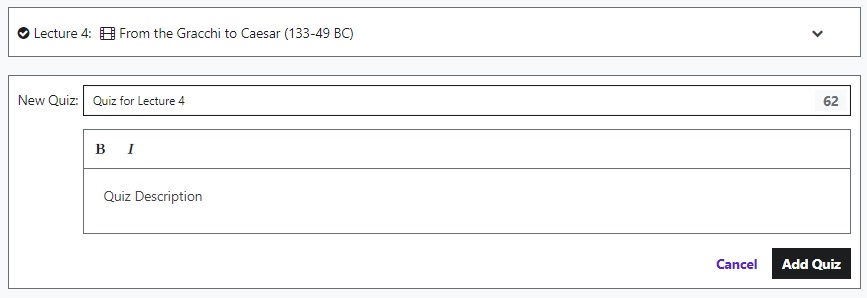
add_a_quiz.jpg
Adding questions 

After creating a new quiz, it's time to add multiple choice or multiple selection questions. 

1. Click Questions. Then, choose between the following quiz types:

  • Multiple Choice: Learners will choose a single correct answer from a set of options.
  • Multiple Selection: Learners can select more than one correct answer from the available choices.

adding_questions.jpg

2. Write the question you want to ask. You can even add an image if you wish

writing_the_question.jpg

3. Enter the possible answers for the answer. You can add up to 15 choices.

4. Indicate the correct answer by pressing the bubble next to one of the multiple choices, or at least two of the checkboxes for multiple selection.

5. Recommended: Explain why the answer is or isn't the best answer

6. Click Save 

7. To add another question to the quiz, click New Question, and repeat the same steps outlined above

add_new_questions.jpg

Related lecture

To further help students, you can link a quiz to a specific lecture. With a related lecture, a learner can return to a previous lecture and review material. Add a related lecture by clicking the dropdown menu under Related Lecture. The related lecture will only appear after a learner has submitted their answer.
 

Editing a quiz

Quizzes can be edited at any time.

Hover your mouse over a question. An icon will appear:

  • Edit - Clicking the pencil icon will allow you to modify quiz questions.
  • Delete - The trashcan icon will permanently erase a quiz question.
  • Move - The icon with the three lines will allow you to drag and drop questions.

edit_a_quiz.jpg

Previewing and publishing your quiz

When you're finished writing the quiz, click Publish to add it to your course. You can also preview the quiz as a student. You will not be able to submit responses, but you can see what the quiz will look like visually when learners are taking the course.


Was this article helpful?
1 out of 5 found this helpful

Related articles

  • Create a practice test
  • Assessments
  • Using the bulk file uploader
  • How to mark a lecture or course item as complete
  • Taking practice tests
Contact Us

Related articles

  • Create a practice test
  • Assessments
  • Using the bulk file uploader
  • How to mark a lecture or course item as complete
  • Taking practice tests

Need Help?

Contact Us
'multiple choice quiz','create quiz','quizzes','instructor','Create a Multiple Choice Quiz',
English (United States) Deutsch Español Français (France) 日本語 한국어 Português 简体中文
  • Udemy.com
  • About us
  • Events
  • News
  • Investor Relations
  • Careers
  • Terms & conditions
  • Privacy policy
  • Cookie settings
  • Sitemap
  • Accessibility statement
Udemy
© 2026 Udemy, Inc.
true